
My Highest-ROI Mac Productivity Trick
As a software developer for over a decade, I’ve tried a lot of different apps, shortcuts, tweaks and tricks meant to help me work faster on my Mac.
The most useful change has been assigning keyboard shortcuts to the apps I use most.
I can move from browsing to chatting, writing, or reviewing code with two keypresses. I hold Caps Lock and press a letter:
- Caps Lock + C for chat
- Caps Lock + B for browser
- Caps Lock + E for editor
- Caps Lock + T for terminal
The shortcut opens the app directly and instantly. I use it throughout the day, and it’s become muscle memory.
Map shortcuts to categories
I assign each letter to a category.
C means chat. B means browser. E means editor. T means terminal.
This keeps the shortcuts stable when I change apps. Slack and iMessage both use C. Firefox and Chrome both use B. Cursor and Zed both use E.
When I replace an app, I update the shortcut in Raycast and keep using the same letter.
Turn Caps Lock into a Hyper Key
Several Mac apps can remap Caps Lock into a Hyper Key. I use Raycast.
A Hyper Key sends several modifier keys at once, usually Control, Option, Shift, and Command. That combination rarely appears in existing shortcuts, which leaves plenty of room for custom ones.
And before you ask, YES you can still use your Caps Lock key normally. A quick press turns the LED and Caps Lock behavior on or off. Holding it while pressing another key triggers the shortcut.
Set up Raycast
After installing Raycast, I recommend assigning it the same shortcut as Spotlight
Go to:
System Settings > Keyboard > Keyboard Shortcuts > Spotlight
Turn off the default Spotlight shortcut.
Then open Raycast Settings and assign ⌘ Space as the Raycast hotkey.
Next, go to:
Raycast Settings > Advanced > Hyper Key
Choose Caps Lock as the hyper key and enable the quick-press Caps Lock behavior.
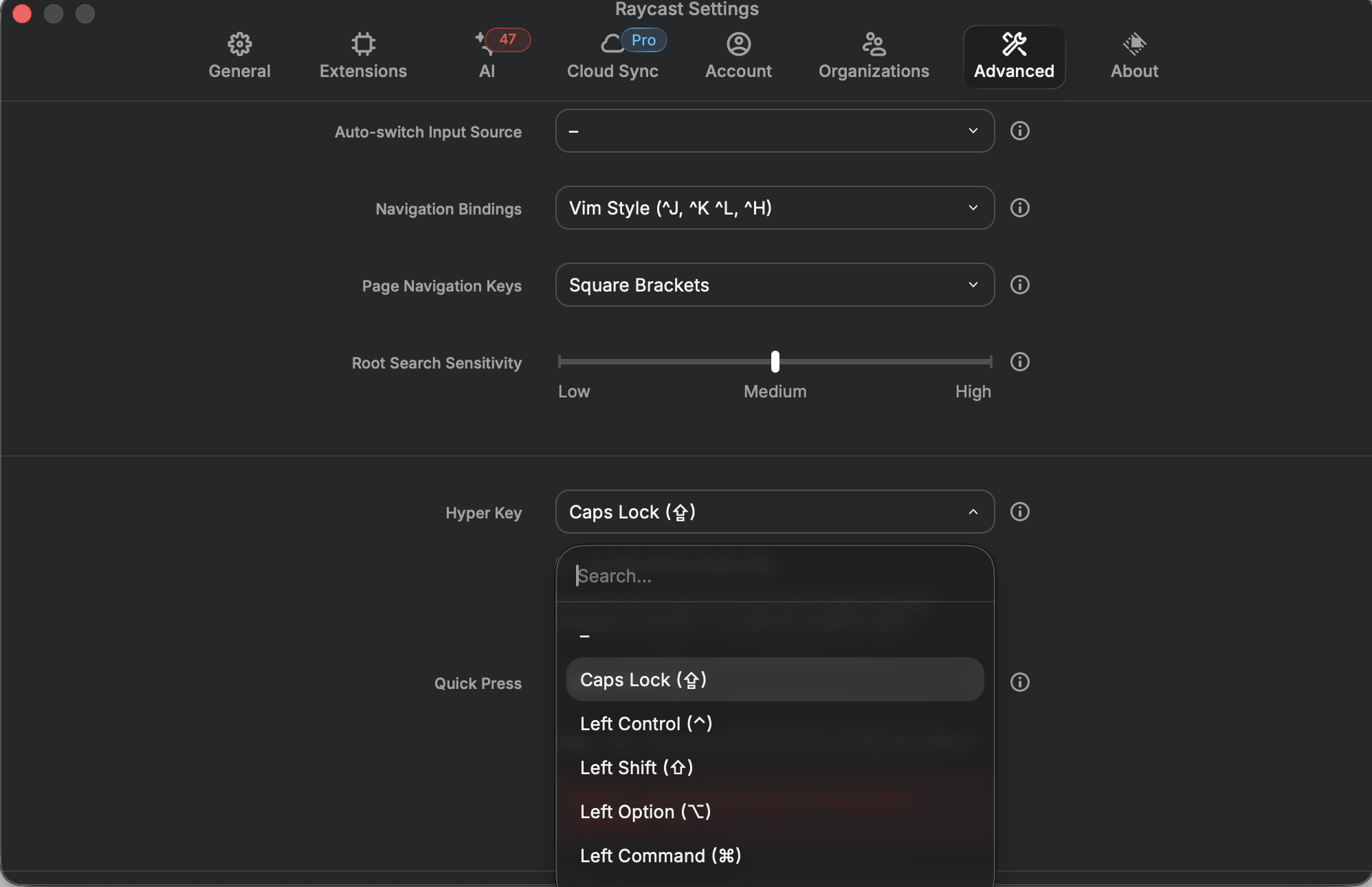
Assign shortcuts to your apps
Search for an app in Raycast, press ⌘K, select Configure Command, and assign the Hyper Key shortcut.
Here are mine:
| Category | Shortcut | Work Mac | Personal Mac |
|---|---|---|---|
| Chat | C |
Slack | iMessage |
| Browser | B |
Firefox or Chrome | Firefox |
| Notes | N |
Bear | Bear |
| Music | M |
Apple Music (switched from Spotify) | Apple Music |
| Editor | E |
Cursor | Zed |
| AI | I |
Codex (switched from Claude Desktop) | Codex |
| Terminal | T |
Warp / Ghostty | Warp |
| Git | G |
Fork (switched from Sourcetree) | Fork |
Choose the categories you use most and give each one a letter you will remember. It might take a few days to become second nature, but it’s well worth the learning curve in my opinion.
Each shortcut saves a small amount of time, but I use them often enough that the savings really add up. I think “browser,” press Caps Lock + B, and continue working, rather than Command + Tabbing through a changing list of apps.